Set up the working environment
USBnet setup
We have enabled RNDIS and DHCP on the system by default in order to use USB network.
Windows
Connect the Duo to the computer via Type-C cable
The "RNDIS" device appear in the Device Manager
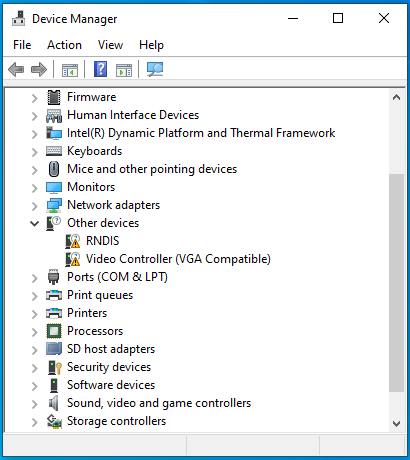
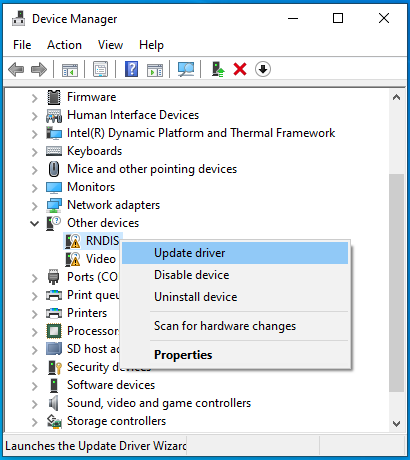
- Select "RNDIS" and right click to update the driver
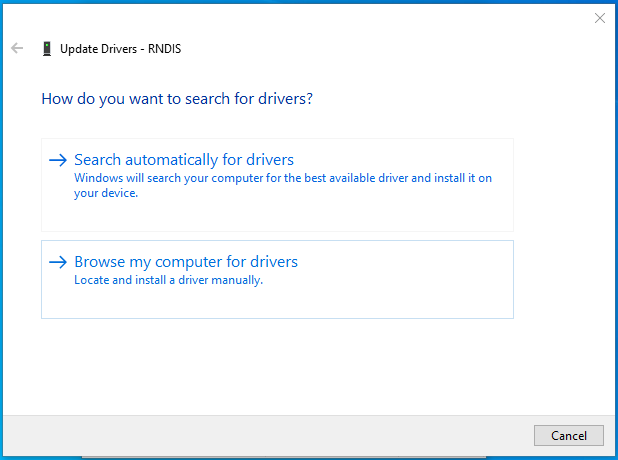
- Select "Browse my computer for drivers"
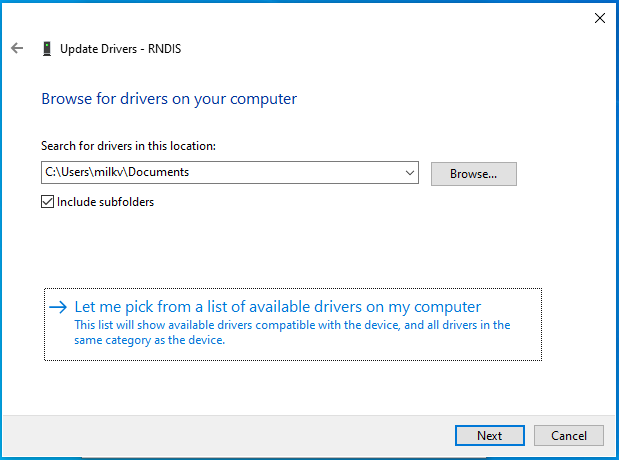
- Select "Let me pick from a list of available drivers on my computer"
- Select "Network adapters"
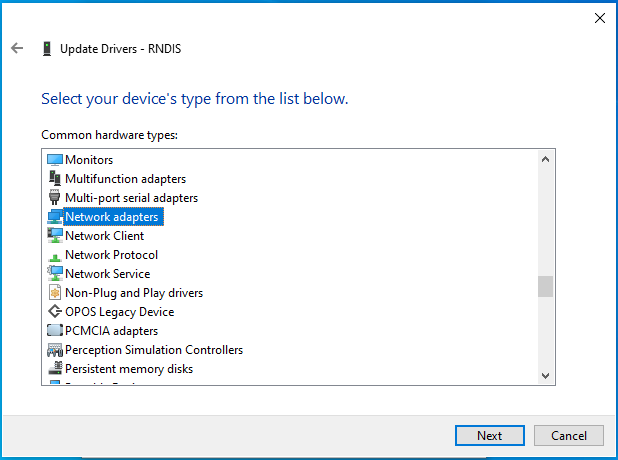
- Manufacturer/Model: Microsoft/USB RNDIS Adapter
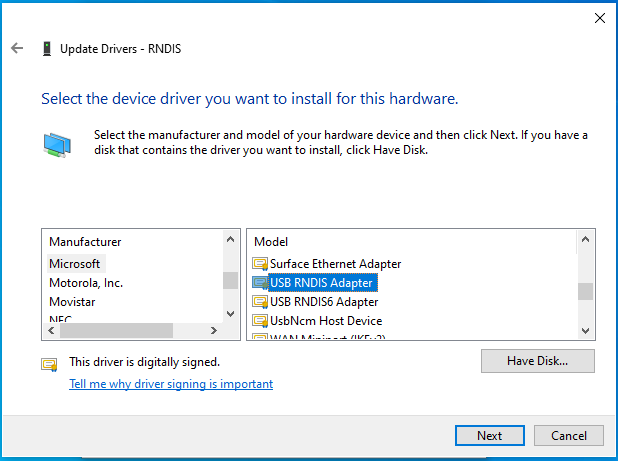
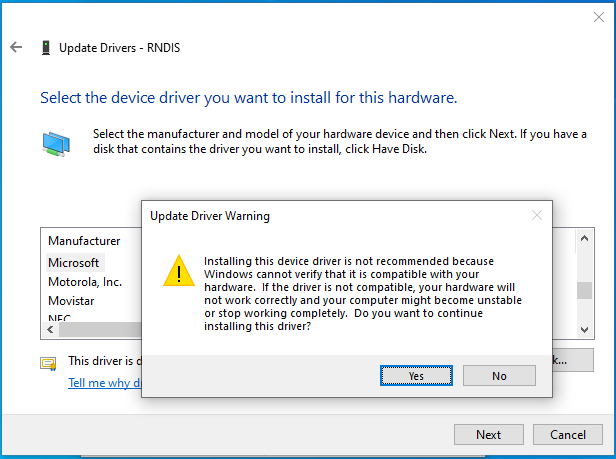
- Ignore warning message
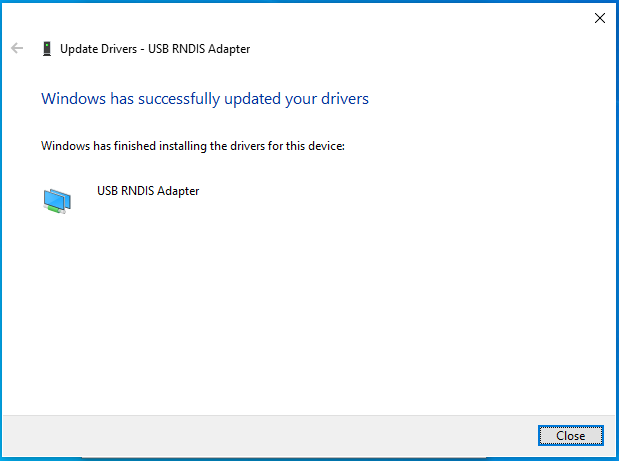
- Driver update successful
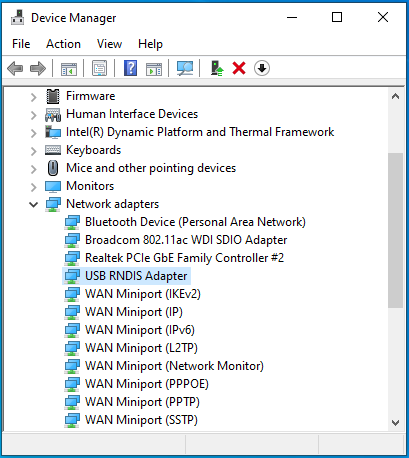
- Check "USB RNDIS Adapter"
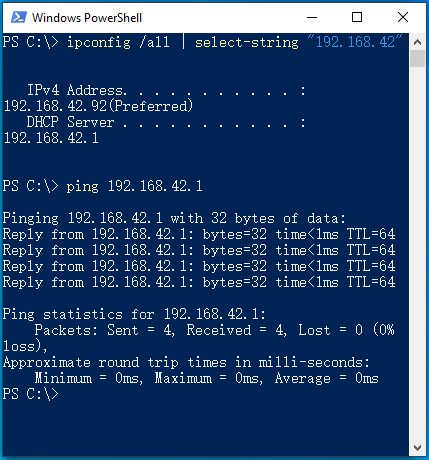
- Find the IP and test the network using ping
Linux
In general, Linux can use RNDIS without configuration.
You can use command ip to check the usb0 network.
neko@milk-v:~ sudo dmesg | grep usb0
[1055270.386719] rndis_host 1-2.1:1.0 usb0: register 'rndis_host' at usb-0000:00:14.0-2.1, RNDIS device, aa:53:5d:bb:7f:28
[1055270.423753] rndis_host 1-2.1:1.0 enxaa535dbb7f28: renamed from usb0
neko@milk-v:~ ip addr show enxaa535dbb7f28
15: enxaa535dbb7f28: <BROADCAST,MULTICAST,UP,LOWER_UP> mtu 1500 qdisc fq_codel state UNKNOWN group default qlen 1000
    link/ether 42:a2:79:19:7f:e3 brd ff:ff:ff:ff:ff:ff
    inet 192.168.42.69/24 brd 192.168.42.255 scope global dynamic noprefixroute enp0s20f0u1
       valid_lft 3569sec preferred_lft 3569sec
    inet6 fe80::3c92:ed74:3475:cb9c/64 scope link noprefixroute
       valid_lft forever preferred_lft forever
neko@milk-v:~ ping 192.168.42.1 -c 5
PING 192.168.42.1 (192.168.42.1) 56(84) bytes of data.
64 bytes from 192.168.42.1: icmp_seq=1 ttl=64 time=0.334 ms
64 bytes from 192.168.42.1: icmp_seq=2 ttl=64 time=0.287 ms
64 bytes from 192.168.42.1: icmp_seq=3 ttl=64 time=0.275 ms
64 bytes from 192.168.42.1: icmp_seq=4 ttl=64 time=0.287 ms
64 bytes from 192.168.42.1: icmp_seq=5 ttl=64 time=0.266 ms

--- 192.168.42.1 ping statistics ---
5 packets transmitted, 5 received, 0% packet loss, time 4096ms
rtt min/avg/max/mdev = 0.266/0.289/0.334/0.031 ms
neko@milk-v:~
macOS
There is no official driver for RNDIS. We need to install HoRNDIS.
- Download HoRNDIS driver
- Intel https://github.com/jwise/HoRNDIS/releases
- Apple silicon https://github.com/jwise/HoRNDIS/files/7323710/HoRNDIS-M1.zip
Disable System Integrity Protection
a. Enter macOS recovery
Please refer macOS User Guide -> Recovery to enter recovery mode.
b. Open the terminal and type the following command
 csrutil disable

 csrutil enable --without kext
c. Restart the Mac
Install the Kext extension in the zip pack
Check the network settings
SSH
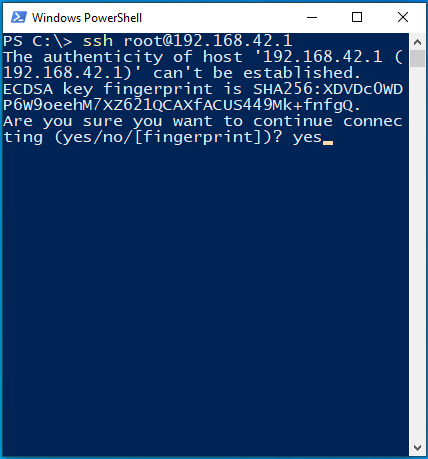
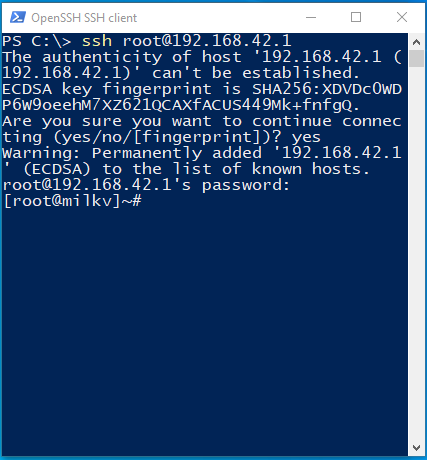
- Open the terminal, type ssh root@192.168.42.1, and answer yes
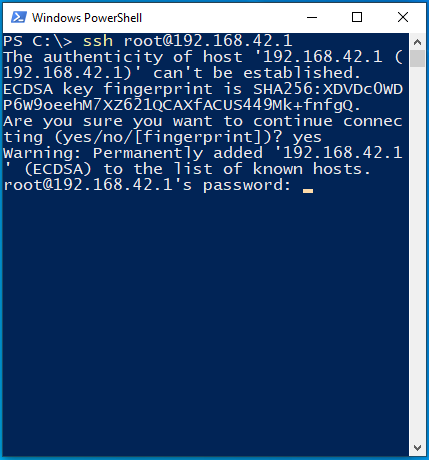
Enter the password milkv
(The password will not be displayed on the screen)
- Login successful
Serial Console
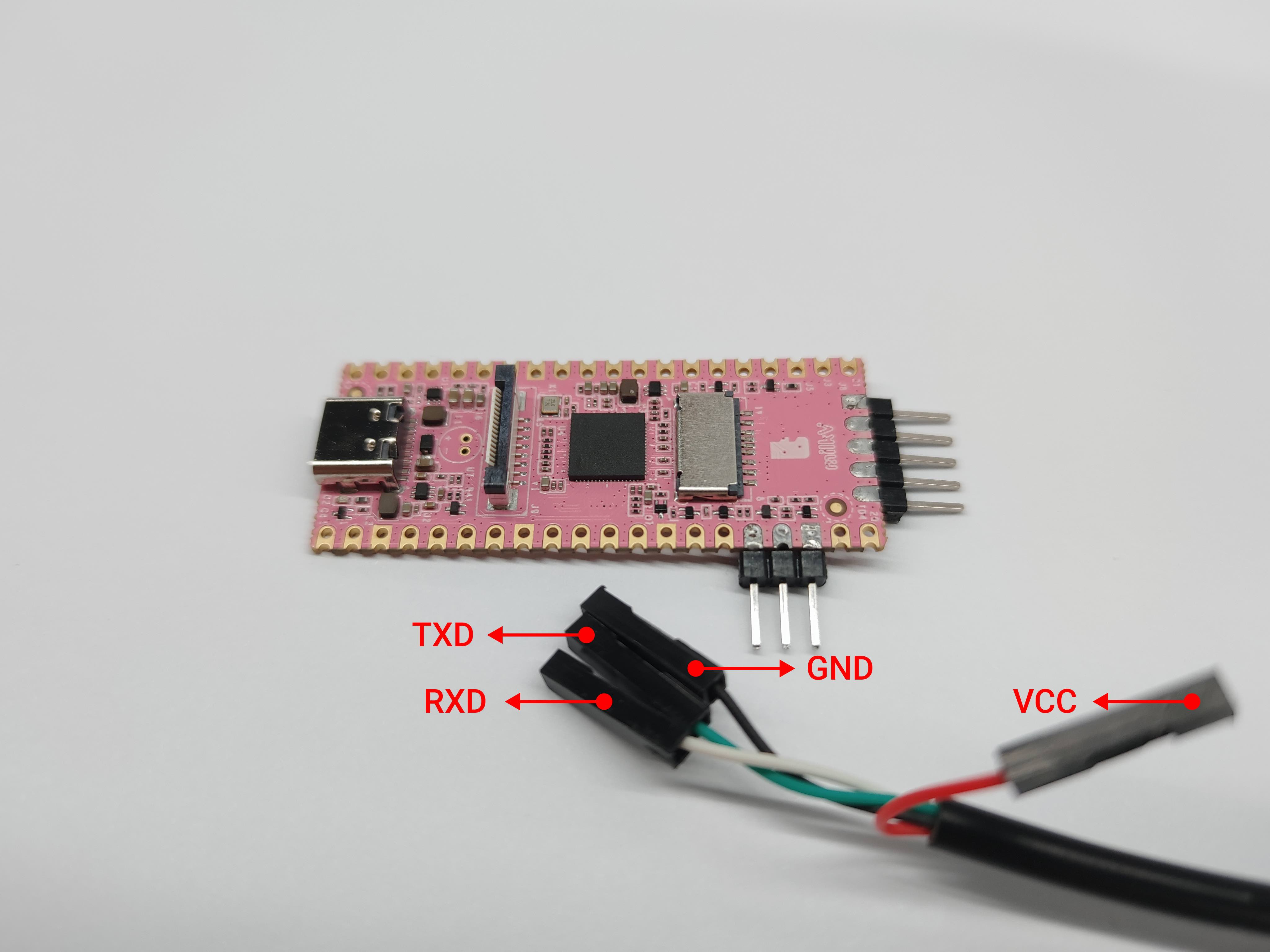
USB to TTL serial cable
Each pin of a USB-to-TTL cable is defined as follows:
Connection
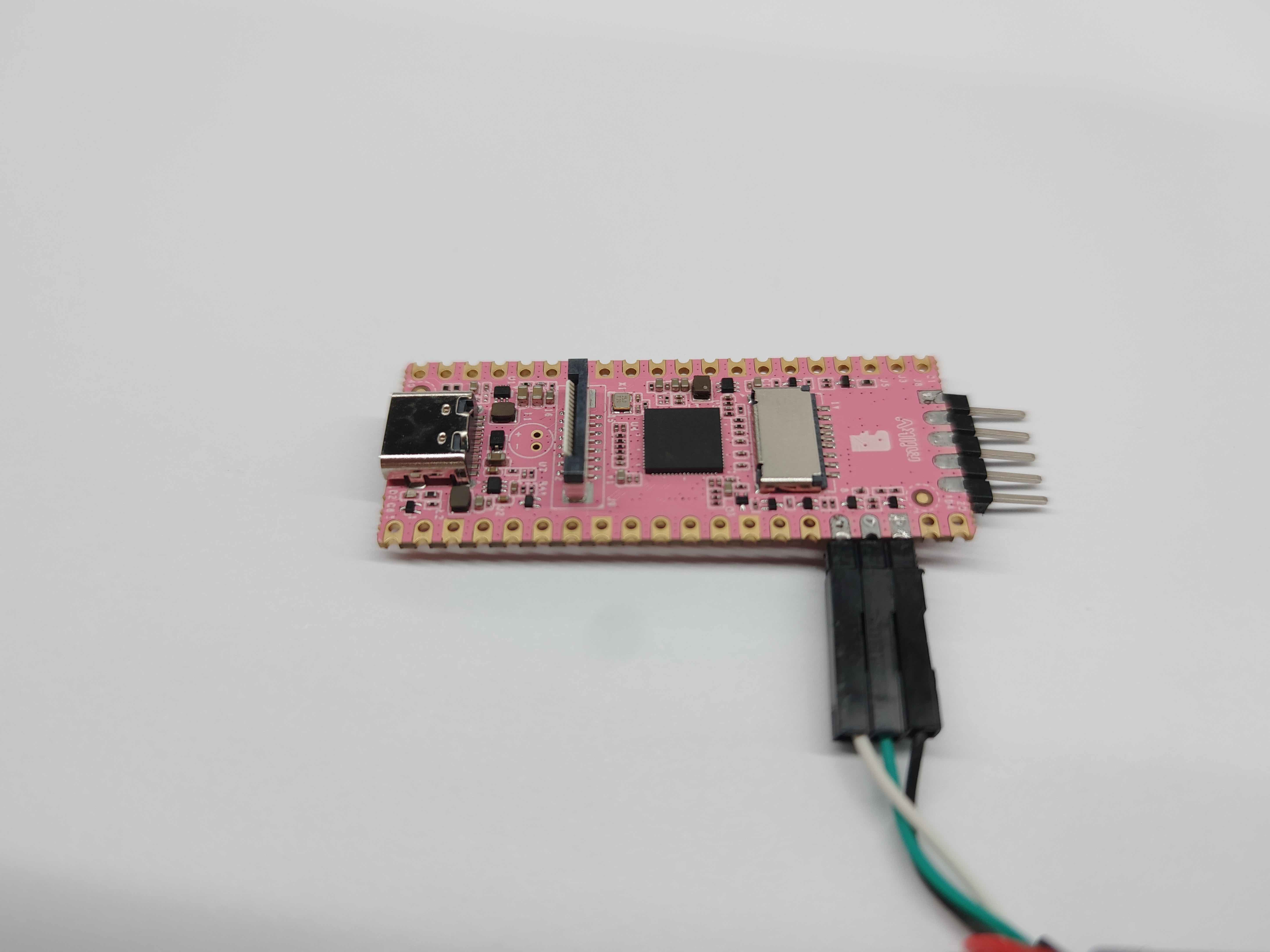
Connect USB to TTL serial cable as shown below. Do not connect the red wire.
| Milk-V Duo | <---> | USB to TTL |
|---|---|---|
| TX (pin 16) | <---> | White wire |
| RX (pin 17) | <---> | Green wire |
| GND (pin 18) | <---> | Black wire |
The default serial setting for Duo u-boot and kernel console is:
   baudrate: 115200
   data bit: 8
   stop bit: 1
   parity  : none
   flow control: none